Introduction
Databases
Jasper stores all your customer information in a database folder. You can have multiple databases for storing different sets of customers. For example, if you run more than one business.
The database/s are stored on your device, NOT on the cloud. If your device is lost or you delete the file, your customer data will be lost too. Therefore, it is important to use the Jasper backup feature to keep your data safe.
Important note for Android users
-
On Android, your database/s are stored in Jasper's application storage. This means Jasper does not require any special access to your device to work.
-
However, if you uninstall the app, Android will delete Jasper's application storage which will also delete your databases.
-
Create a backup before uninstalling the app to keep your data safe.
Where to store a database
As mentioned previously, when using Android, databases are stored in Jasper's application storage.
On desktop (Windows and Linux), you can store databases anywhere on your computer. A reasonable place would be your documents folder or any other location you keep safe.
Important - Anyone with access to your database file can access your data. Don't put a database in a shared or public folder.
Interface breakdown
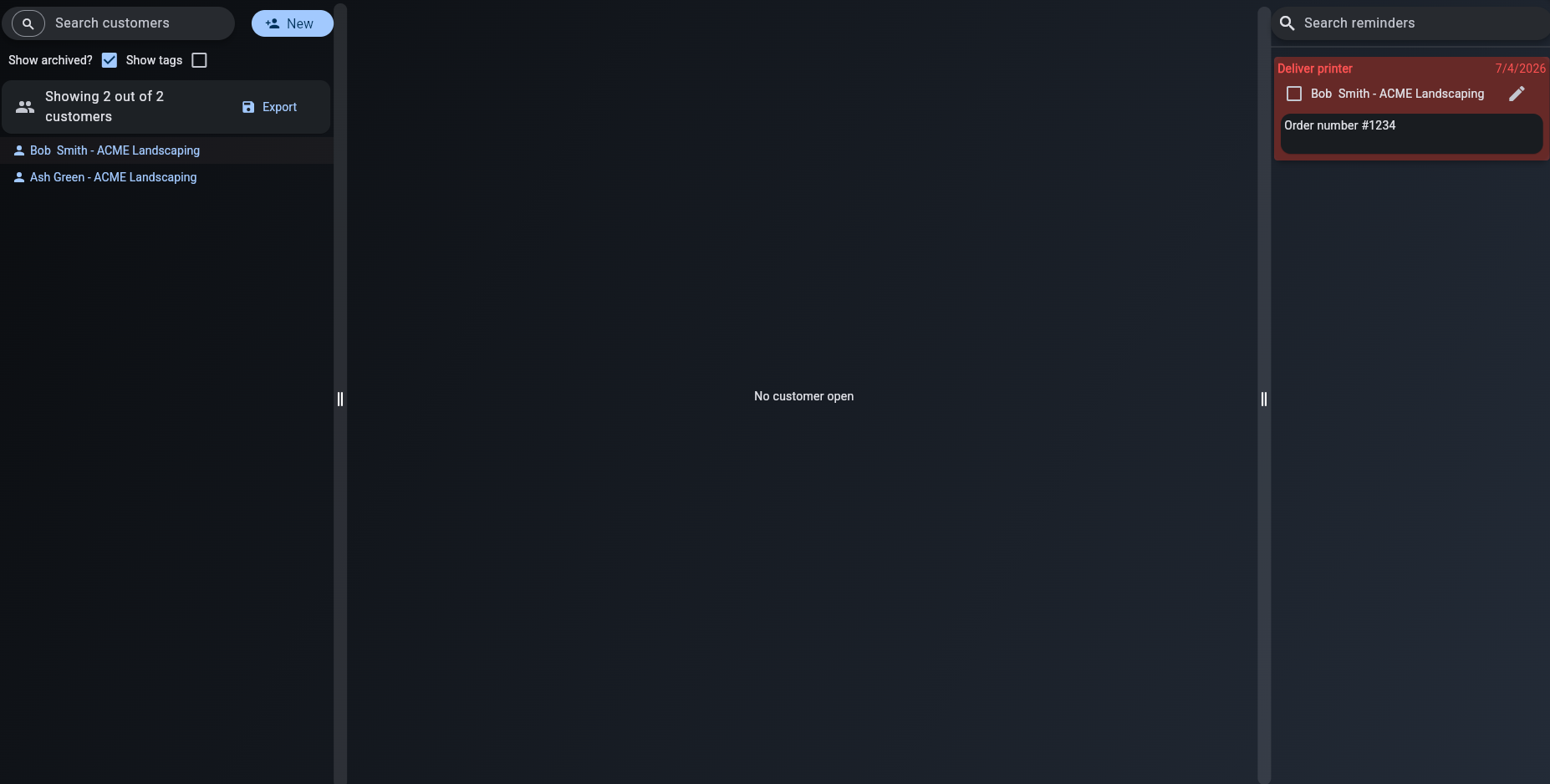
Jasper's interface is broken into three main sections:
- customer list
- customer details
- reminders
Android interface
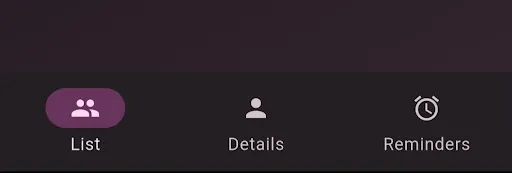
The desktop and Android interface are very similar. On Android, the three interface sections are broken into tabs which you can navigate using the bottom tab bar.
Desktop interface
On desktop, the interface sections are shown together in three panels.
You can resize these panels by clicking and dragging the vertical dividers.
Left - customer list
The customer list allows you to view and search all customers in your database.
When you first create a database, this list will be empty.
To add a new customer, press the new button next to the search bar.
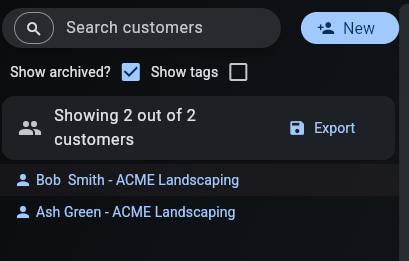
You can also export all customers returned from a search query using the export button.
See the customer list page for more details on the display and search features.
Center - customer details
When you select a customer by clicking them in the list, their information will be shown in the customer details section. This is where you will edit their information, create reminders and notes, and much more.
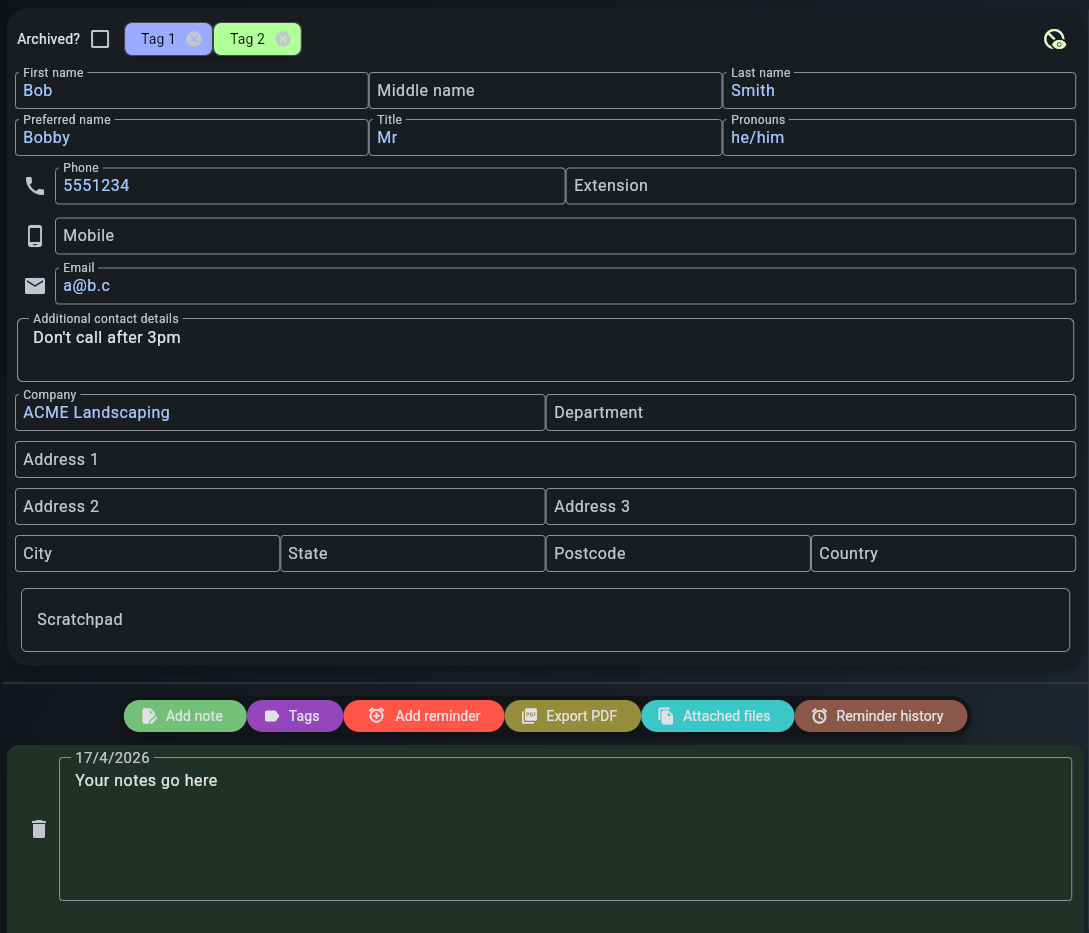
The bottom green part of this section is for notes. Any notes on the selected customer will show up there.
Don't need this all these fields? - You can disable any fields you don't need by pressing the "Disable fields" button at the top right of the customer details section.

Right - reminders list
Reminders are a way to manage tasks related to a specific customer. This could be making a delivery or phone call, sending an email or anything else you need to do.
All your upcoming reminders for every customer are shown in this list, sorted by due date.
Reminders will appear red when due today or overdue.
Tick the checkbox when you have completed the task associated with the reminder - completed reminders will disappear after 8 hours.
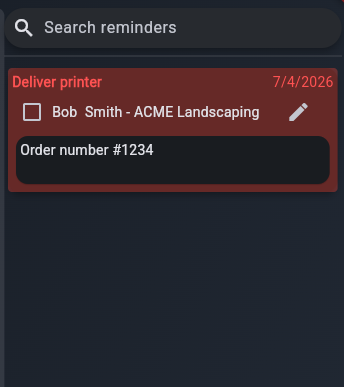
Note: You can change the date format used under "Jasper Settings" in the side navigation bar.
See the reminders page for more information about using them.
Side navigation bar
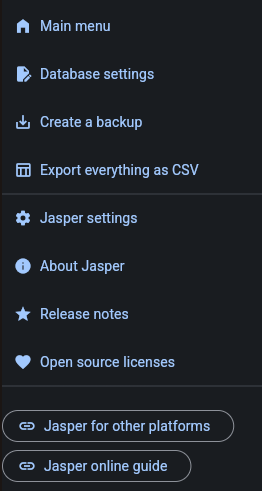
The side navigation bar provides access to miscellaneous options that aren't related to a customer.
You can:
- export all your customer data
- change theme, font and other formatting options under "Jasper settings"
- change database-related settings, such as backup frequency, under "Database settings".
You can also manually create backups here if needed. It also has a handy button to access this very guide.
You can access the navigation bar with the burger menu in the top left of the window (above the search bar). This is only available when a database is open.
