Backups
Variatur does not process your data outside your device, so it is up to you to keep your data safe.
Jasper databases are stored on your device - if your device is damaged, corrupted, or you accidentally delete the database, you will lose your data.
This risk is easily mitigated with Jasper backups.
Manual backups
You can manually create a backup of your database with the "Create a backup" button in the side menu.

Where to store backups
- When you create a backup, you will be prompted for a location and name to save the file.
- We very strongly advise against storing it on the same device as your database.
Some possible backup locations include:
- Google Drive
- One Drive
- A USB stick (or similar), kept in a safe location
Important: Backups are NOT encrypted, so ensure you keep the files secure.
Every backup is given a file name based on the current date by default (eg backup_MyDatabase_2026_7_11.mdb).
You may choose to rename the file to something without a date (eg MyDatabase_backup.mdb) and overwrite previous backups.
Some users may prefer to keep a long history of backups.
You can change your backup reminder frequency in Database Settings from the side menu bar.
Backup reminders
- When you create a new database, you will be asked how often you want to backup (this can always be changed later in "Database settings").
See our page on deciding a suitable backup frequency
When it is time to create a backup, you will be prompted with this popup:
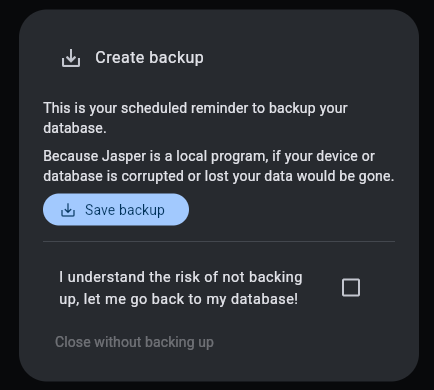
It will keep appearing regularly until you create the backup.
You can temporarily ignore it by accepting the checkbox however it will reappear regularly until you create the backup.
Restoring from a backup
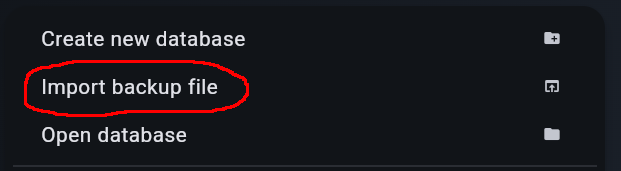
- You can import a backup file by pressing "Import database" from the main menu and selecting the previously backed-up file.
- You will be asked for a name (and, on desktop, a location for the new database) - this name will be given to the restored Jasper database.
- Jasper will then open the restored database.